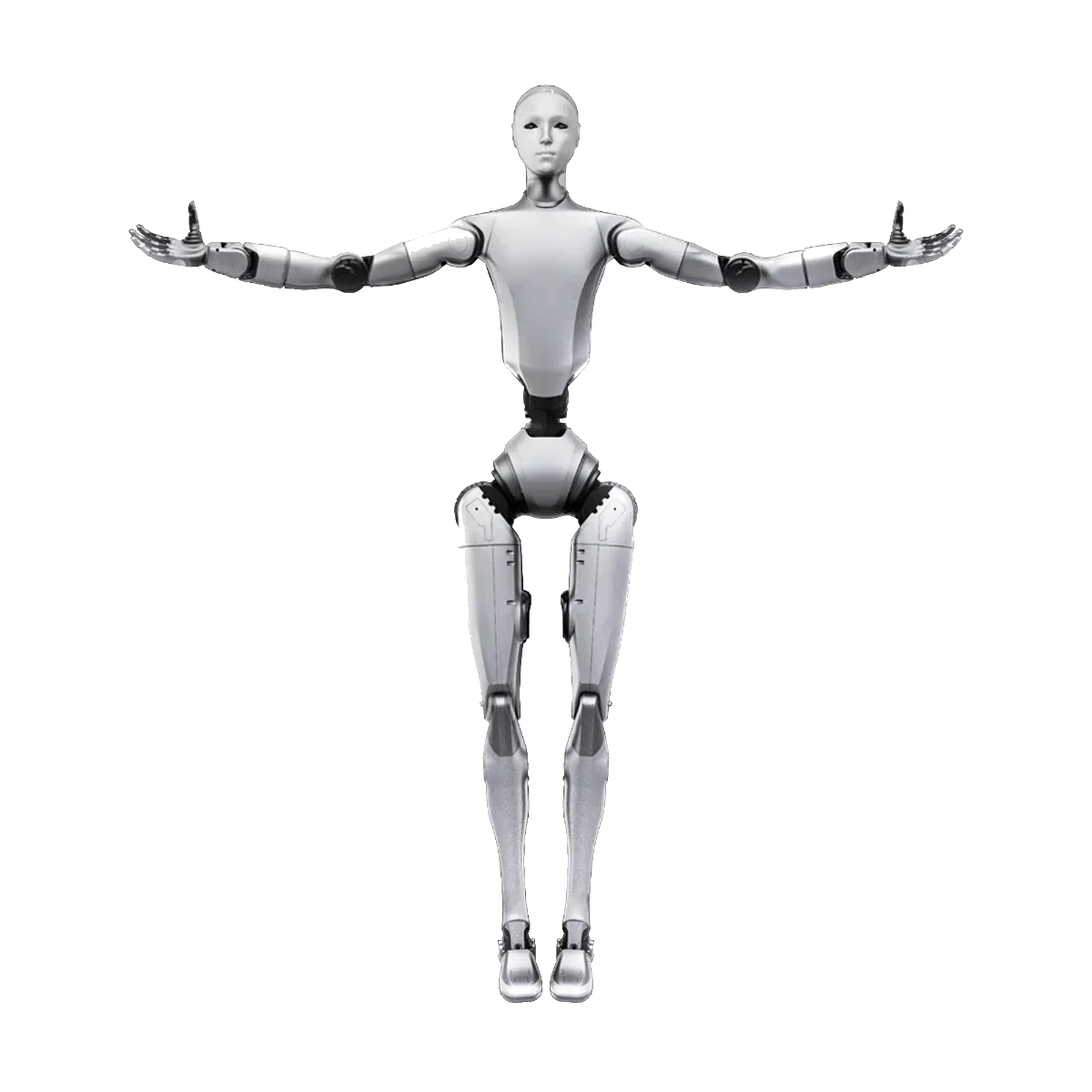
The first power-on of the Unitree H2 requires support, a charged battery and a configured network. The robot is 1,820 mm tall, weighs about 70 kg with the battery and does not hold its balance until it enters motion control: until then it must be hung or supported. Versions and configurations are on the H2 range page; the differences between H2 Air, H2 EDU, H2-D and H2 Plus are in the H2 guide. The procedure described here covers the biped versions: H2 Air, H2 EDU and H2 Plus.
Unitree H2 first power-on: the correct sequence
The H2 manual describes a precise sequence. Key combinations change with the firmware: use the remote control manual for your unit, not a sequence copied from a video of another version.
- Support. Hang the robot from a hoist or rest it on a suitable support, facing forward. Clear the area of people and obstacles and arrange the arms and legs in a natural position, with no cables under tension.
- Battery. Insert it into the compartment until it clicks, with the robot switched off. Do not force it: if it does not go in, remove it and check the orientation.
- Power on. A short press on the battery button, then a long press of more than 2 seconds. Wait about a minute: the robot initialises and enters zero torque or damping.
- Posture. With the remote control or the cockpit, bring the H2 into the preparation position for standing while still supporting it. Put the feet down, switch to motion control and check the balance before releasing the support.
- Shutdown. Return the robot to the rest posture, put it in damping, then press briefly and hold the battery button for more than 2 seconds. For long periods, remove the battery.
The critical point is the fourth step. In damping the joints relax: if the robot is standing and not supported, it collapses. Keep the support under tension until you have seen the robot hold its balance on its own.
How much space you need for the first power-on
The stated standing dimensions are 1820 × 456 × 218 mm, but the useful space is not that of the robot at rest. What counts is the stride, the arm span, the exclusion zone and the working radius of the hoist. Example with hypothetical numbers: a 7 × 7 m room, a 4 × 4 m test area, a 1.5 m margin on each side and a ceiling of at least 2.8 m for the harness.
The floor must be level and non-slip. No cables, low obstacles or objects that could catch the feet. You need stable lighting and non-reflective surfaces: the manual warns that poor lighting and reflections make perception worse. The H2 is for indoor use: rain, splashes and condensation stay out of the test area.
If the robot has to work alongside people, the design of the area is part of the risk assessment. The method for setting up a trial in a company is in the guide to a PoC with a humanoid robot.
Gantry and harness: the requirement you cannot improvise
You do not power on an H2 standing and unsupported. The manual calls for a suspension point rated for the weight of the robot plus a safety factor. Hoist, slings and anchor point must be chosen for that value.
Prefer a hoist with a brake and controlled descent, or a suitable support. Attach only to the points provided on the robot, never the arms, legs or head. During the first tests keep the feet a few centimetres off the ground and nobody under the robot.
Two people are needed: one on the remote control and one on the hoist. The stop sequence must be rehearsed before powering on. If the robot drops suddenly, the person on the hoist must be able to stop the fall without being within reach of the arms.
Power and battery
The battery is 15 Ah (0.972 kWh), with a maximum voltage of 75.6 V and about 3 hours of runtime according to Unitree. It is quick-release, but it must be inserted and removed with the robot switched off.
Before the first power-on, charge the battery and prepare the correct charger. If the session lasts longer than one battery pack, keep a spare. Do not work with a low battery: the manual warns that a voltage drop during the standing position or an arm acceleration can make the joints release in an unsafe way.
The power ports on the back deliver 54-75.6 V and 10 A directly from the battery, two 24 V/10 A outputs and one 12 V/10 A; the two hand interfaces add 24 V/10 A each. The sum of the external outputs, excluding the direct battery one, must not exceed 500 W. If you add sensors, a compute module or a camera, do the maths before fitting them.
Network: two segments, not a single LAN
The base H2 has two RJ45 ports on the back and they are not interchangeable. The port on the 192.168.123.x segment carries DDS traffic and control; the port on the 192.168.124.x segment is the PC2 one. The H2 Plus lists four Gigabit Ethernet ports: numbering and segments must be checked against the configuration bill of materials. The table below is from the H2 documentation.
| Device or port | Address | Notes |
|---|---|---|
| RJ45 [12] | 192.168.123.x | DDS, control, custom software development (SDK) |
| RJ45 [15] | 192.168.124.x | PC2 |
| PC1, motion controller | 192.168.123.161 | Closed, do not change |
| PC2, development computer | 192.168.123.162 and 192.168.124.162 | User unitree, initial password Unitree0408 |
| PC3 and PC4 optional | 192.168.123.163/.164 and 192.168.124.163/.164 | Initial password 123 |
The SDK is available on the H2 EDU and H2 Plus: the H2 Air does not allow custom software development (SDK). For the SDK, connect your PC to the port on the 123.x segment with a free static IP on the same subnet, check connectivity and run the examples on the PC2 or from an external PC. PC1 is left alone: it is the Unitree motion controller.
Before connecting the robot to the company network, change the passwords, put it on a dedicated VLAN and open the Internet uplink only if needed. The guide to network security with Unitree robots covers VLANs, OTA and cloud.
Debug mode: only with the robot suspended
For low-level commands the Unitree quick start guide asks you to put the H2 in damping, suspend it and press L2+R2 to enter debug mode. L2+A runs a diagnostic action. It is a lab mode, not for a trade show demo.
If an example does not respond, check the robot state, mode and network interface first. Do not change the code until you have ruled out a connection or sequence problem. Unitree documents are updated: check the last-modified date before following a procedure.
Documentation to have before you start
Download and save a local copy of the documents for your configuration: if the network is isolated, the online manual cannot be reached.
- H2 manual: power on, shutdown, battery, safety and robot states.
- Remote control manual: the key map depends on the firmware.
- Battery and charger manual: voltage, charging and storage.
- H2 developer guide: interfaces, network addresses, debug mode and SDK.
- Delivery bill of materials: exact version, compute modules, hands and accessories.
If the configuration is an H2 Plus, dimensions, weight and battery are the same as the H2, but computing, ports and hands change: NVIDIA Jetson T5000 module and, as an option, two SharpaWave hands with 22 DOF each. The bill of materials and the configuration manual must be read first; the details are in the guide to the H2 Plus.
Safety and regulations
General information, not legal advice. The risk assessment and the actual obligations depend on the environment, software and intended use.
Before walking the H2 near people you need a written risk assessment. Employers must provide suitable equipment and train the people who use it, under the health and safety rules that apply where the robot is used.
Until 19 January 2027, machinery placed on the EU market follows Directive 2006/42/EC. From 20 January 2027, Regulation (EU) 2023/1230 applies, as the European Commission states. An H2 placed on the market before that date remains governed by Directive 2006/42/EC. The employer's health and safety obligations still apply. The guide to the Machinery Regulation 2027 explains what changes for anyone who modifies the robot or installs it in a cell.
In the H2 manual the stop procedure is damping, followed by removing power. The H2 Plus lists a remote E-stop. If your configuration includes one, test it before starting and check the equipment against the bill of materials.
Practical rules: a marked-off zone, controlled access, two operators, a tested stop and a session log. If the robot is suspended, the area under the hook stays off limits. If in doubt, stop the robot and remove power: it is the action that does not depend on the software.
Checklist before the first power-on
- Hoist or bracket checked, rated for the robot weight plus margin, with brake and controlled descent.
- Clear area, level and non-slip floor, stable light, no cables on the floor.
- Battery charged, correct charger and a second battery if the session is long.
- H2 manual and remote control manual for the exact version, saved locally.
- For H2 EDU and H2 Plus: PC with a static IP on the 123.x segment and an Ethernet cable.
- PC2, PC3 and PC4 passwords changed, where present, before connecting the robot to the network.
- Two operators present, stop sequence tested, nobody under the robot.
- Firmware version and delivery bill of materials noted in the session log.
Frequently asked questions
Do you really need the harness for the H2 first power-on?
Yes. The H2 manual asks you to support the robot during power-on and every change of posture: it does not hold its balance before motion control. The harness must be rated for the weight of the robot plus a safety margin.
How much space does the Unitree H2 need?
The width is 456 mm and the depth 218 mm, but the useful space includes stride, arms, exclusion zone and hoist radius. You need a clear area, a level floor and no cables on the ground.
Which Ethernet port is used for the H2 SDK?
The RJ45 port on the 192.168.123.x segment, [12]. [15] belongs to the 192.168.124.x segment of the PC2. On the PC, set a free static IP on the same subnet.
What credentials does the Unitree H2 PC2 have?
The user is unitree and the initial password is Unitree0408; on early firmware versions it may be Unitree#24226. Change it before connecting the robot to a shared network.
Can the H2 be started without connecting it to the Internet?
Yes. Local control and the SDK run over Ethernet and DDS. Without Internet you lose OTA updates and cloud functions; for an isolated network, agree the procedure with your supplier.
What are the differences between the H2 and the H2 Plus?
Dimensions, weight and battery are the same. The H2 Plus carries an NVIDIA Jetson T5000 module and, as an option, two SharpaWave hands with 22 DOF each. The bill of materials and the configuration manual must be read before the first power-on.
Sources
- Unitree, H2 product page (dimensions, weight, battery, runtime, no SDK on the base version and safety warnings)
- Unitree, H2 Plus product page (Jetson T5000, SharpaWave hands, remote E-stop and software development)
- Unitree, H2 User Manual (power on, support, battery, shutdown and safety)
- Unitree, H2 Remote Control (remote control commands)
- Unitree, H2 Battery and Charger (battery and charger)
- Unitree, H2 Developer Guide: About H2 (interfaces, PC1/PC2, addresses and credentials)
- Unitree, H2 Developer Guide: Quick Development (network, SDK2, debug mode and suspension)
- Unitree, H2 app and manuals (unboxing, power-on, network, calibration and debug videos and documents)
- Unitree Robotics, unitree_sdk2 (C++ SDK and development environment)
- European Commission, Machinery (Directive 2006/42/EC and application of Regulation 2023/1230 from 20 January 2027)