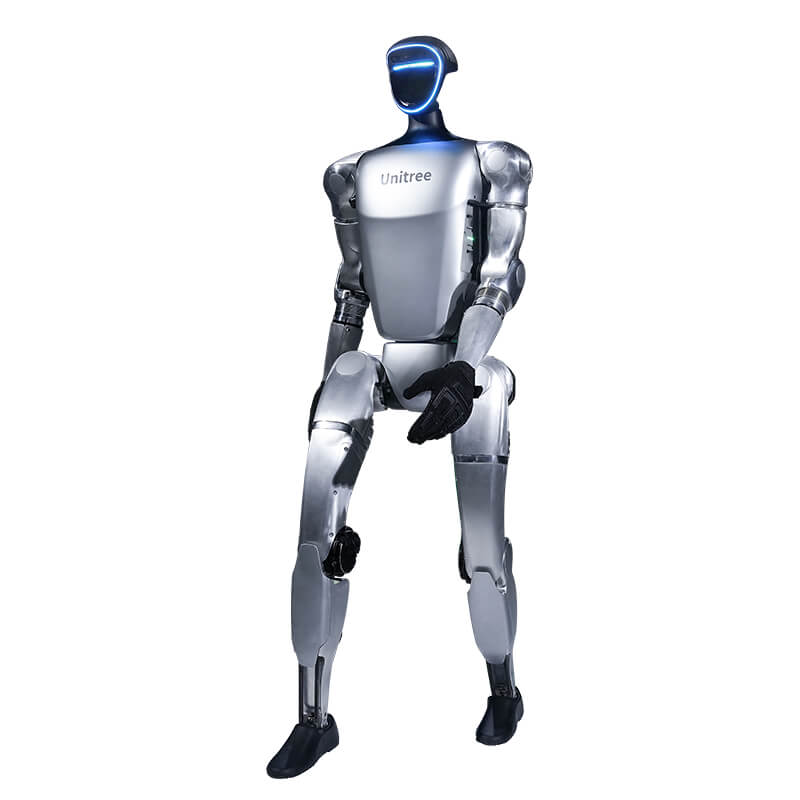
In short. The G1 receives software updates over the network (OTA). The starting point is the official Unitree Explore app connected to the robot. Before you start, check the battery, the current version and the connection; do not switch the robot off during the update. Unitree does not document a way back to the previous version.
This guide explains how to approach the Unitree G1 firmware update while staying within what Unitree documents: the official G1 page, the user manual, the Unitree Explore app and the support.unitree.com help centre. No packages taken from forums and no improvised commands: an update done wrong can leave the robot in a state that requires service.
What Unitree says about updating the G1 firmware
In the specifications table the G1 and the G1 EDU both list Upgraded Intelligent OTA: the robot's software updates over the network, with no changes to the hardware. The user manual, among the checks to do before switching the robot on, asks you to make sure the firmware is at the latest version: "Ensure that the firmware has been updated to the latest version".
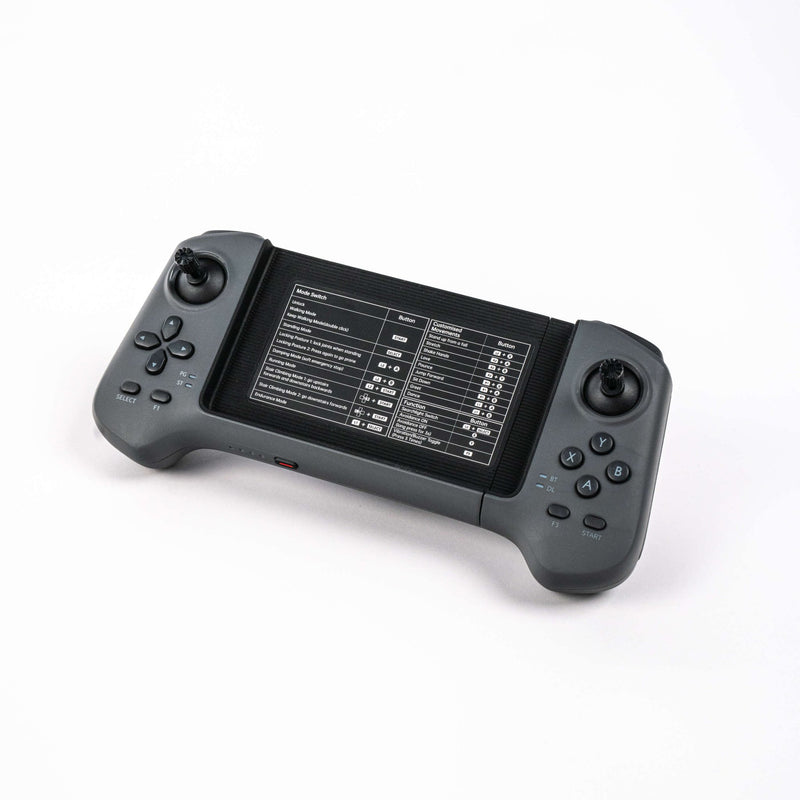
The connection between phone and robot runs through the Unitree Explore app, available for iOS and Android from the Unitree Explore APP Download page. The app shows the robot's status in real time (temperature, alarms and other data), useful for checking that the machine is in normal conditions before you proceed. Check the Unitree help centre for news and release notes for your version.
The steps, in order
- Install the app and connect the robot. On first connection the manual asks you to register an account, turn on the phone's Bluetooth and keep it close to the G1, then add the robot with "Add Robot".
- Choose the connection mode. The manual offers two modes: AP (the phone connects to the robot's hotspot) or Wi-Fi through a router. The procedure is also in the "Adding G1 & Network setting" video on the app page.
- Check status and version. Before updating, check in the app that there are no active alarms and note the current firmware version.
- Start the update and wait. Follow the instructions the app shows for your robot and do not interrupt the power or the connection until the operation is complete.
Before updating: battery, version, network
- Battery. The manual does not state a minimum charge for the update. As a precaution start with a charged battery: the G1 battery lasts about 2 hours according to Unitree, and an interrupted update is worse than a postponed one.
- Version. Note the current firmware version. It tells you whether the update is really needed and, if there are problems, gives support precise information.
- Network. The manual advises against environments with Wi-Fi interference and, in AP mode, asks that the hotspot name contain no special symbols or spaces. Keep phone and robot close. If you work on the G1 EDU with the internal 192.168.123.x network, the G1 power-on and network guide explains how it is organised.
After the update: alarms and calibration
In the G1 Developer FAQ section of the Unitree help centre a specific case is described: after updating to firmware 1.3.0 or later the robot can report Joint limit abnormal and Transient Over Voltage. According to Unitree the new firmware makes joint calibration more precise, so the previous calibration no longer meets the requirements and has to be redone.
Calibration is done from the app: the assisted calibration function recalibrates the motor joints and the IMU. In the manual the path is [Settings] → [Data] → [Robot] → [Calibration]; in newer versions of the app the menu may change.
Warning. The manual reminds you that the G1 leaves the factory already calibrated and must not be recalibrated during normal use. If an alarm appears after an update, ask technical support for confirmation before recalibrating.
What not to do
- Do not switch the robot off or close the connection during the update.
- Do not update with a nearly empty battery or an unstable network.
- Do not use unofficial firmware packages: updates come only from the Unitree channels.
- Do not recalibrate "just in case": calibration is redone only when needed, as with firmware 1.3.0, and after talking to support.
- Do not start without knowing the current firmware version.
Can you go back to a previous version?
For the G1 firmware Unitree does not publish a downgrade procedure in the documents consulted (user manual, app page, developer FAQ). It is not an operation to attempt on your own. If an update causes problems, the first point of contact is Abra Robotics, which also provides the Unitree range in the United Kingdom, Ireland and internationally, with support in English; the manual also lists Unitree technical support (support@unitree.cc) and the Unitree customer service portal.
Frequently asked questions
How do I update the Unitree G1 firmware?
The G1 supports OTA updates over the network. You start from the official Unitree Explore app connected to the robot, after checking the battery, the current version and the network, and without switching the robot off until the update is complete.
Where do I find the firmware news and release notes?
Check the Unitree help centre (support.unitree.com) for news and release notes.
Can I go back to a previous firmware version?
It is not documented by Unitree. If an update causes problems, contact support instead of trying a downgrade on your own.
After the update the G1 reports "Joint limit abnormal" or "Transient Over Voltage": what should I do?
According to Unitree's developer FAQ, with firmware 1.3.0 or later the joint calibration changed and the previous one must be redone from the app. Before recalibrating, ask technical support for confirmation.
Can I switch the robot off during the update?
No. Do not interrupt the power or the connection until the update is complete.
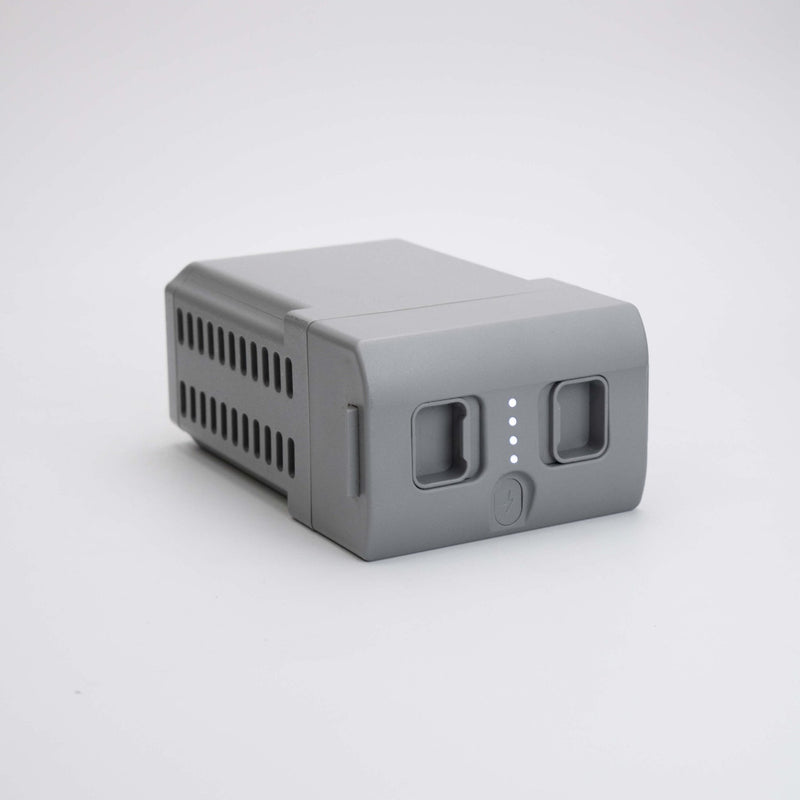
For day-to-day use of the robot, the G1 operational guide covers power-on, remote control and safety commands. Those developing on the G1 EDU will find the SDK and ROS 2 in the programming guide; the differences between versions are in which G1 to choose. Configurations and prices are on the Unitree G1 page and on the G1 EDU U1 sheet; if you need a second battery to avoid running dry during testing, there is the G1 battery. The whole range is on the humanoids page.
Sources
- Unitree G1, official page ("Upgraded Intelligent OTA" entry, battery life, warranty)
- Unitree Explore APP Download: official app, functions and G1 video tutorials
- Unitree G1 User Manual (pre-power-on checks, app connection, calibration)
- Unitree Document Center, G1 Developer FAQ
- Unitree, customer service portal