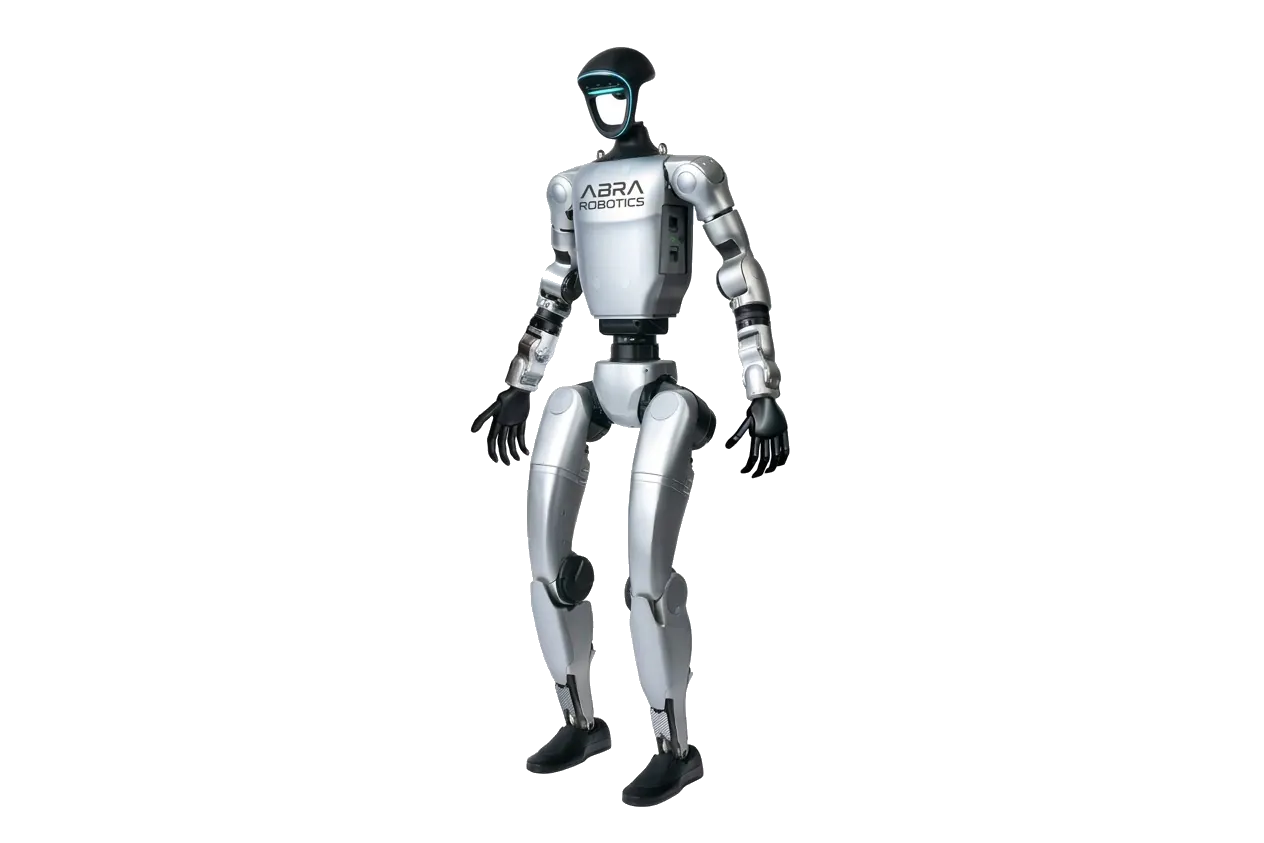
Programming the Unitree G1 needs three things: the EDU version, an Ubuntu PC connected to the robot's internal network and the official unitree_sdk2 SDK. This guide follows the public Unitree documentation (GitHub repositories and Document Center) and points to the file or page each step comes from. If your robot has just arrived, start with switching it on, the remote control and standing it up for the first time.
Which G1 can be programmed
In the official G1 page secondary development is listed only for the G1 EDU; the G1 base has 23 degrees of freedom and no computing module for development. The EDU versions range from 23 to 43 DoF, with an optional computing module (Unitree cites Orin boards) and optional Dex3-1 hands. In the Abra price list the G1 Air starts at €18,155 and the G1-U1 EDU (23 DoF, 100 TOPS compute dock) at €38,005, excluding VAT. All versions are in the G1 hub; to choose between U1, U2 and the versions with hands there is the guide which G1 version to choose.
Architecture: where your code runs
The G1 EDU has a motion control computer, managed by Unitree, and a development computer (PC2) for user code. The Unitree repositories, for example xr_teleoperate, put PC2 at the address 192.168.123.164 with user unitree. Unitree provides the initial password; the developer FAQ and the LeRobot guide for the G1 report 123. Change it as soon as the robot joins a shared network.
You have two options:
- Code on your laptop: the PC talks to the robot over DDS on the Ethernet cable. This is the most convenient choice for developing and debugging.
- Code on PC2: you run the program over SSH on the robot. It is needed for cable-free autonomy and to reduce latency.
ssh unitree@192.168.123.164Configuring the PC network
- Connect the PC to the robot with an Ethernet cable.
- Set the interface to manual IPv4: address
192.168.123.99(the one Unitree suggests), netmask255.255.255.0. Do not use addresses already present on the robot, such as.164. - With
ip aorifconfignote the name of the interface (enp3s0,eth0...): all the SDK examples ask for it as an argument. - Check with
ping 192.168.123.164. If it does not answer, the problem is the network: there is no point opening the IDE.
A dedicated Ethernet port (even a USB adapter) avoids conflicts with the lab network.
Installing unitree_sdk2 (C++)
The unitree_sdk2 README gives as reference environment Ubuntu 20.04, gcc 9.4.0, x86_64 or aarch64 CPU and CMake 3.10 or higher. On other Ubuntu versions it usually builds, but that is the tested environment. Windows is not an environment covered by the README.
sudo apt-get update
sudo apt-get install -y cmake g++ build-essential libyaml-cpp-dev \
  libeigen3-dev libboost-all-dev libfmt-dev
git clone https://github.com/unitreerobotics/unitree_sdk2.git
cd unitree_sdk2 && mkdir build && cd build
cmake .. -DCMAKE_INSTALL_PREFIX=/opt/unitree_robotics
make
sudo make install
make also builds the examples, which end up in build/bin/. Installing to /opt/unitree_robotics is also what the unitree_mujoco simulator recommends.
Or Python: unitree_sdk2_python
The Python wrapper requires Python 3.8 or higher and cyclonedds 0.10.2:
git clone https://github.com/unitreerobotics/unitree_sdk2_python.git
cd unitree_sdk2_python
pip3 install -e .
If the installation stops with "Could not locate cyclonedds", the README explains how to build CycloneDDS from the releases/0.10.x branch and set CYCLONEDDS_HOME. The examples for the G1 are in example/g1/. A useful note from the examples README: the G1 and H1-2 use the unitree_hg messages, while the Go2, B2 and H1 use unitree_go.
Debug mode: before every low-level test
At power-on the G1 starts its own motion control, which keeps sending commands to the motors. If you publish on rt/lowcmd in parallel, the commands collide and the robot vibrates. The procedure documented in the unitree_rl_gym deployment guide is:
- switch on the robot suspended in the harness and wait for zero-torque mode;
- press L2+R2 on the remote control: the robot enters debug mode with the joints damped;
- only now run the low-level program.
In debug mode the robot does not balance on its own: leave it suspended until your controller holds it.
First test: moving the ankles
The g1_ankle_swing_example example (source in example/g1/low_level/) reads rt/lowstate, writes rt/lowcmd and swings the ankles. From the build folder:
./bin/g1_ankle_swing_example enp3s0Replace enp3s0 with your interface. If the terminal prints "CRC Error", the received message is corrupt or does not match the expected type: check the cable, the interface and the SDK version.
For high-level commands (standing, walking with set velocities) there is g1_loco_client, which uses the built-in motion control and therefore runs outside debug mode:
./bin/g1_loco_client --network_interface=enp3s0 --get_fsm_idMain topics
| DDS topic | Contents | Source |
|---|---|---|
rt/lowstate | Motor state, IMU, battery | ankle swing example |
rt/lowcmd | Position, velocity, torque commands and kp/kd gains | ankle swing example |
rt/secondary_imu | Torso IMU | ankle swing example, unitree_mujoco |
rt/dex3/left/cmd, rt/dex3/right/cmd | Dex3-1 hand commands | g1_dex3_example |
rt/lf/dex3/left/state, rt/lf/dex3/right/state | Dex3-1 hand state | g1_dex3_example |
The hands have topics separate from locomotion: it is best to keep the leg control loop in one process and the grasping in another, at different frequencies.
Simulate first: unitree_mujoco
unitree_mujoco is a MuJoCo-based simulator that exposes the same messages (LowCmd, LowState, SportModeState, torso IMU for the G1). A program written with unitree_sdk2, unitree_sdk2_python or unitree_ros2 runs first in simulation and then on the robot. The simulator supports low-level development only. For reinforcement learning, unitree_rl_gym covers the train, play, sim2sim (MuJoCo) and sim2real cycle for the G1, H1, H1-2 and Go2.
When to add ROS 2
The direct SDK is the shortest path for motors and isolated tests. ROS 2 is needed when you have to integrate Nav2, MoveIt, standard vision pipelines, rosbag recording or several robots in the same lab. The unitree_ros2 package contains the unitree_hg messages and a low-level example for the G1 (g1/lowlevel/g1_low_level_example); Unitree has tested it on Ubuntu 22.04 with Humble (recommended) and on Ubuntu 20.04 with Foxy. Installation, network and the first topic are in the guide ROS 2 on Unitree robots.
Lab safety checklist
- First tests always with the robot suspended and a clear area around it.
- Low kp/kd gains and conservative torque limits in the first control loop.
- One person on the remote control, ready to put the robot into damping.
- Same SDK version on the PC and the robot; after an OTA update re-check the examples.
Abra Robotics offers training and software development on top of the SDK as services separate from the hardware: details on Software and Universities and Research.
Frequently asked questions
Can you program the G1 base (non-EDU)?
No. In the official Unitree page secondary development is listed only for the G1 EDU; the G1 base has neither the computing module for development nor SDK access.
What operating system is needed on the development PC?
The unitree_sdk2 README gives Ubuntu 20.04 with gcc 9.4.0 as the reference environment, on x86_64 or aarch64 CPU. For ROS 2 Unitree has tested Ubuntu 20.04 with Foxy and Ubuntu 22.04 with Humble, recommending Humble.
What is the address of the G1 development computer?
The G1 EDU development computer (PC2) answers on 192.168.123.164, user unitree. Your PC goes on the same 192.168.123.x subnet with a free address; Unitree suggests 192.168.123.99.
Why does the robot vibrate when I run a low-level example?
Almost always the built-in motion control is still active and sends commands in parallel with yours. Enter debug mode (L2+R2 with the robot suspended and damped) before sending commands on rt/lowcmd.
Better to start from simulation or hardware?
From simulation. unitree_mujoco uses the same DDS messages as the robot, so the same program runs first in MuJoCo and then on the G1 by changing only the network interface.
Sources
- Unitree, G1 product page (versions, DoF, secondary development): unitree.com/g1
- Unitree, unitree_sdk2, README and G1 examples: github.com/unitreerobotics/unitree_sdk2 · example/g1
- Unitree, unitree_sdk2_python: github.com/unitreerobotics/unitree_sdk2_python
- Unitree, unitree_ros2: github.com/unitreerobotics/unitree_ros2
- Unitree, unitree_mujoco: github.com/unitreerobotics/unitree_mujoco
- Unitree, unitree_rl_gym, deployment guide on the real robot (L2+R2 debug mode): deploy_real/README.md
- Unitree, xr_teleoperate (PC2 on 192.168.123.164): github.com/unitreerobotics/xr_teleoperate
- Unitree Document Center, G1 developer section: support.unitree.com/home/en/G1_developer
- Hugging Face, LeRobot documentation for the Unitree G1: huggingface.co/docs/lerobot/en/unitree_g1